Recognize an old draft and recover a copy
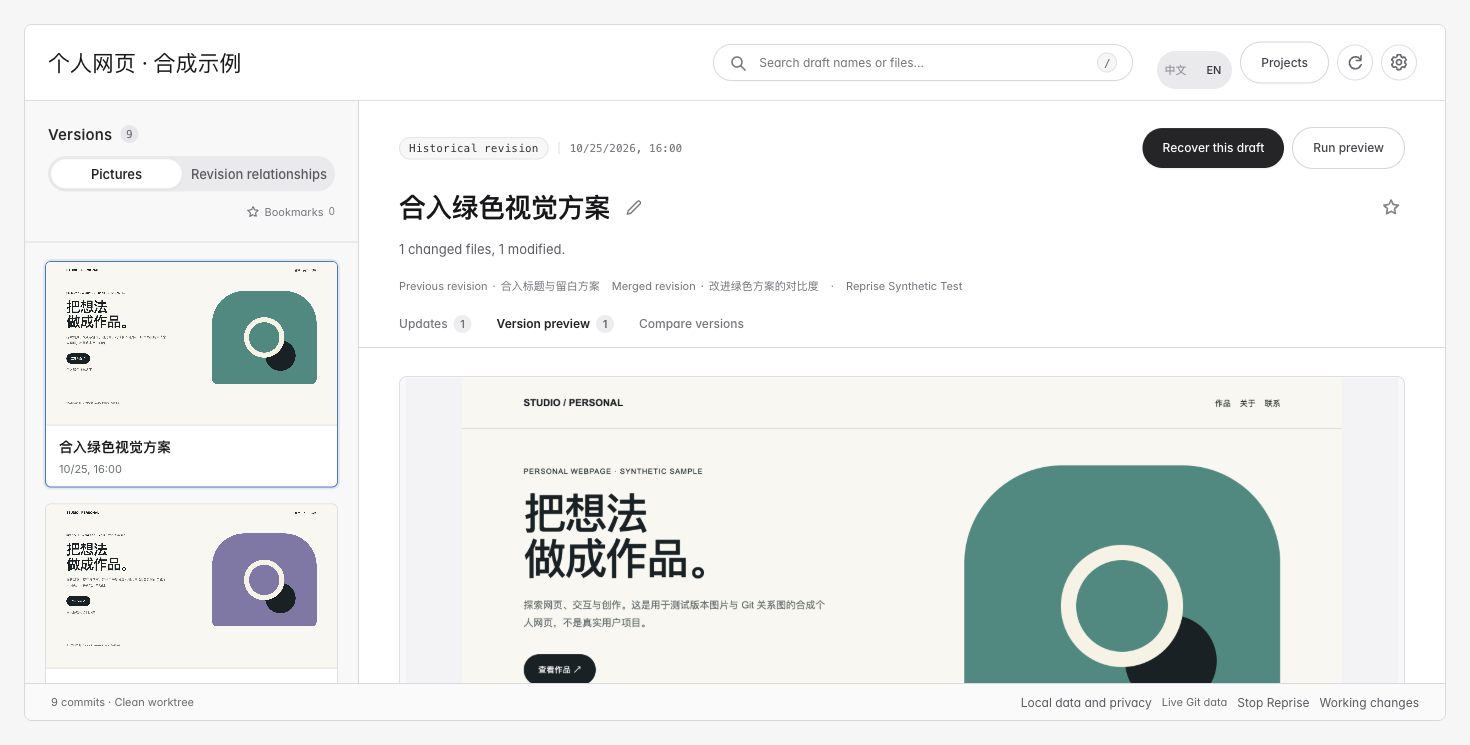
Open Reprise and recognize the draft by its picture, title and time. Select it, inspect its own picture and choose “Recover this draft.”
The default is a new folder beside the source project; there is no need to type a nonexistent full path. Open the result, confirm the old colors, then keep editing the copy. The current project stays intact.
Local verification of the current version
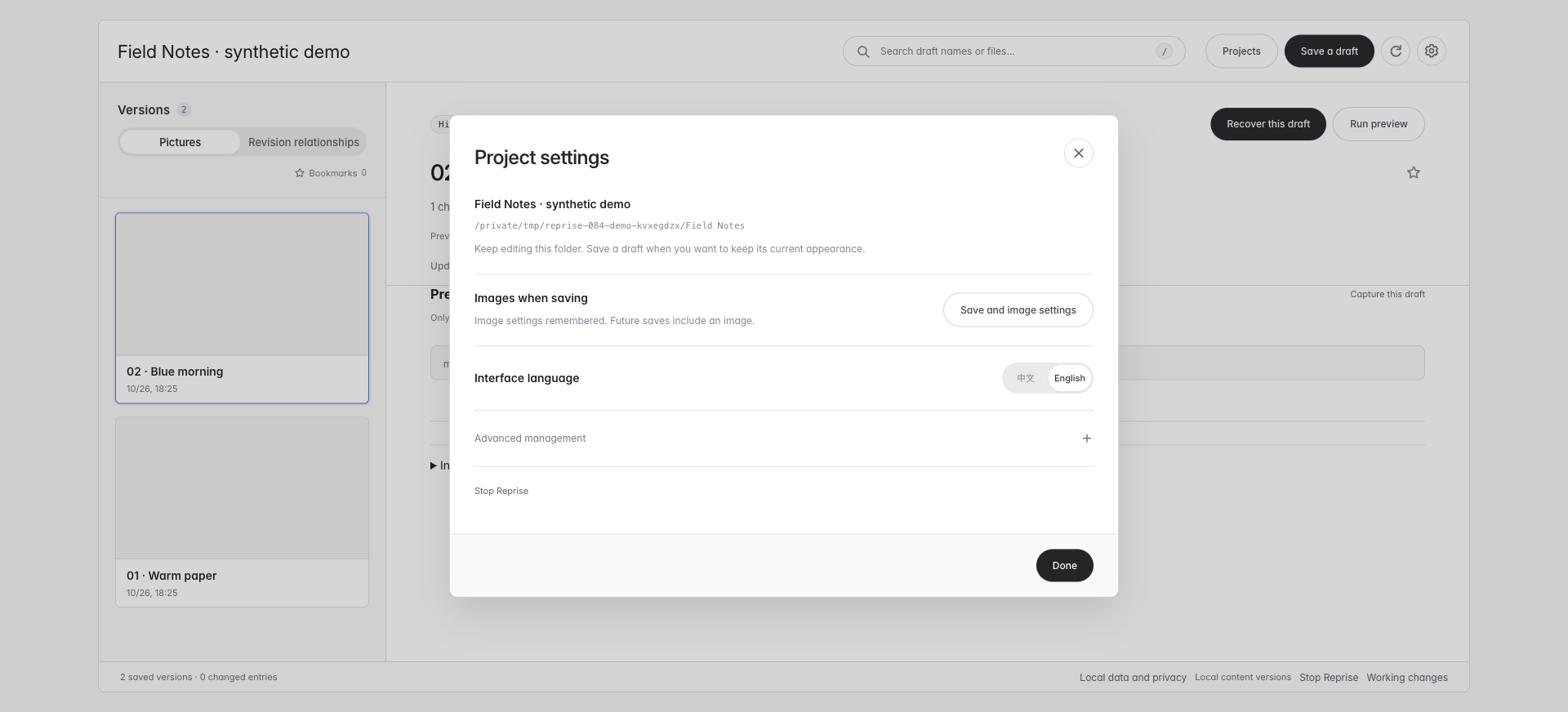
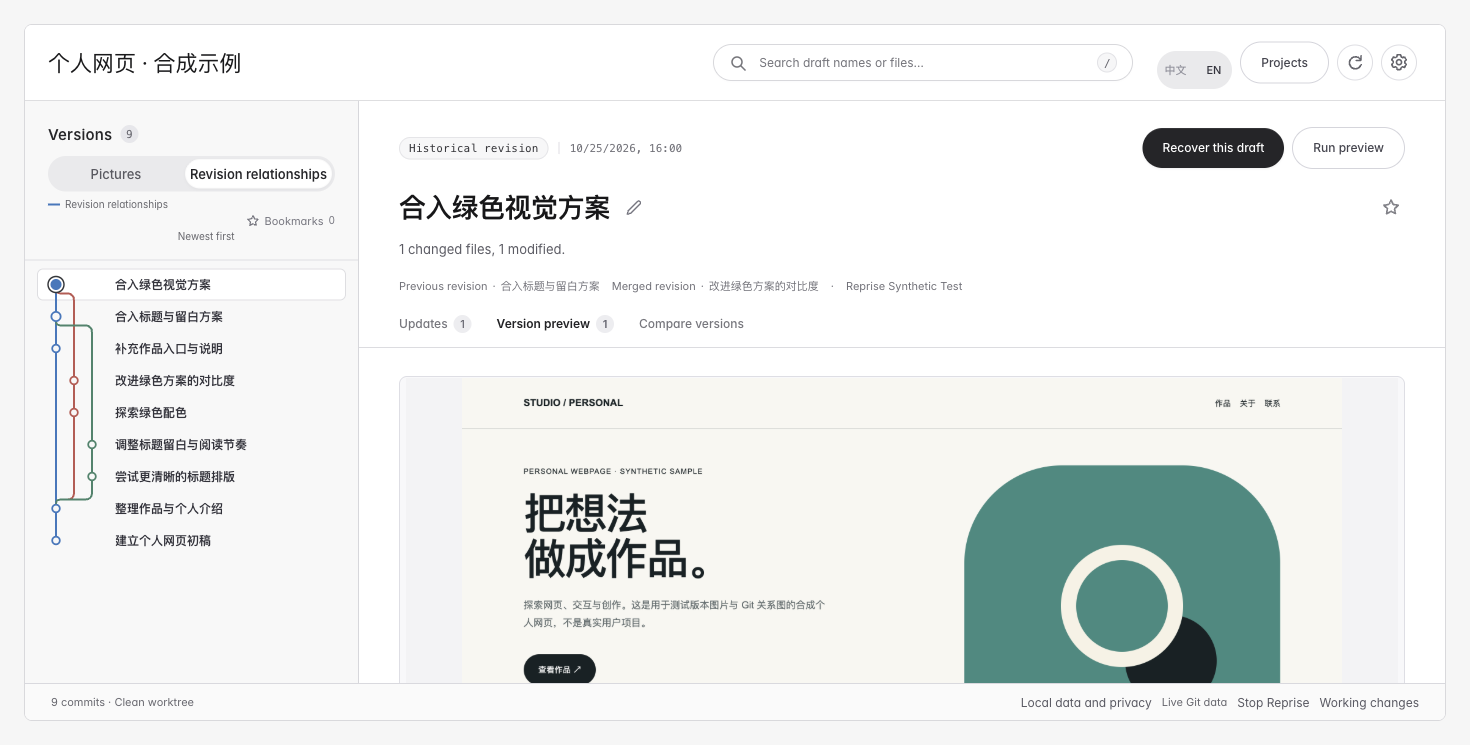
The synthetic personal webpage below contains nine real Git commits, branches and merges, with each version’s own captured picture. On this Mac, the workbench recovered an earlier blue draft by picture. Its files were read back byte for byte, then edited and saved again as an independent copy. The original webpage and Git files stayed unchanged.
These images come from that synthetic personal webpage run, without private projects. The separate tutorial ZIP uses a two-draft static webpage sample. They do not establish recovery of every framework, remote service or old dependency environment.
Verified sample demonstration
This synthetic run checked the package version, recovered file readback, and unchanged current source. It does not prove every project can be recovered or run.
Reprise-Skill.zip
SHA-256: 346093f733b9e59e7f0edcfd47b6c20e729c483d7ff50ad980164a613544d3e4
When a picture or runtime is missing
Saved files can still be recovered without a picture, but the visual retrieval task is incomplete. Successful file recovery does not guarantee working external services or old development environments. See FAQ.
Whole-draft recovery provides “Copy instructions to continue”. Paste it into your editing agent so it uses the actual recovered folder. Partial-file recovery does not claim a complete editable webpage.